Projects

You can configure projects for the Controlant Platform (SCM).
Note
This section is only accessible for users with Admin access to the Controlant Platform (SCM).
You can use projects to organize shipments and locations into groups and control access to them. Users with Admin access can create and manage projects.
Example use of projects:
create projects for one or more of the following:
department
pharmaceutical trial
business region
customer
for each project, configure who has access to it, granting specific users or user roles access
in the Controlant Platform (SCM), you can select a project to only view shipments and locations in that project
In the Admin Panel, in the Company Control Panel menu, click Projects.
The Projects page appears.
The Projects list shows all projects in your account, both active and disabled. For each project, you can see its name, description, status, reference, and the dates it was created and disabled.
Note
Toggle to show or hide disabled projects in the list. Disabled projects appear grayed out.
Item | Description |
|---|---|
Selection | Click to select project. |
Name |
|
Reference |
|
Description |
|
Status |
|
Created |
|
Disabled |
|
To create a new project, click + Create a new project.

The Create project page appears.

In the Name box, type the name for the project.
If you want to include a project reference, in the Reference box, type the reference ID for the project.
If you want to include a project description, in the Description box, type the description for the project.
Click Create .

The Projects page appears, with the new project in the list of Active Projects.
To modify a project, in the Projects list, locate the project you want to modify and click
 , then select Edit projects.
The Edit project page appears.

To modify the project, do one or more of the following:
If you want to modify the project name, in the Name box, type the new name for the project.
If you want to modify the project reference, in the Reference box, type the new reference for the project.
If you want to change whether the project is active, turn the Active toggle on or off.
If you want to modify the project description, in the Description box, type the new description for the project.
Click Save.

The Projects page appears.
To change user access to a project, in the Projects list, locate the project you want to modify and click Edit users.
The Set user permissions page appears.
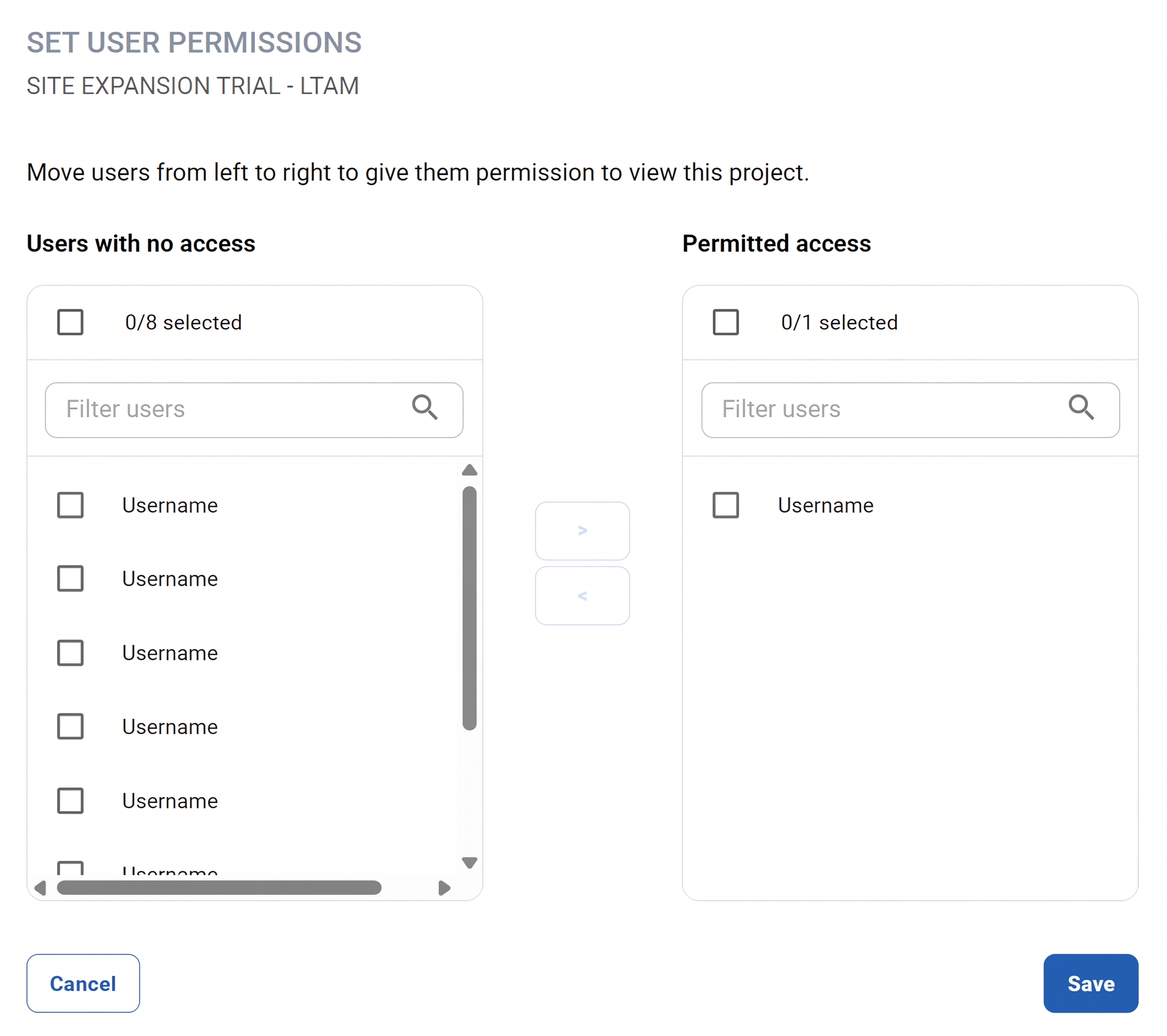
If you want to give users access to the project, do the following:
In the Users with no access list, select the check box next to each user you want to add. To find a user, type their name in the Filter users box. To select all users, select the check box at the top of the list.
Click >. The selected users move to the Permitted access list.
Click Save.
If you want to remove access from users, do the following:
In the Permitted access list, select the check box next to each user you want to remove.
Click <. The selected users move to the Users with no access list.
Click Save.
If you want to disable a project, in the Projects list, do the following:
Locate the project you want to disable and click
 .
Select
 Disable project.
If you want to enable a project, do the following:
To view the list of disabled projects, click Show disabled projects.

The Disabled Projects list appears.
Locate the project you want to enable and click
 Enable project.
The Projects page appears; the enabled project is now in the Active Projects list.