Report subscriptions
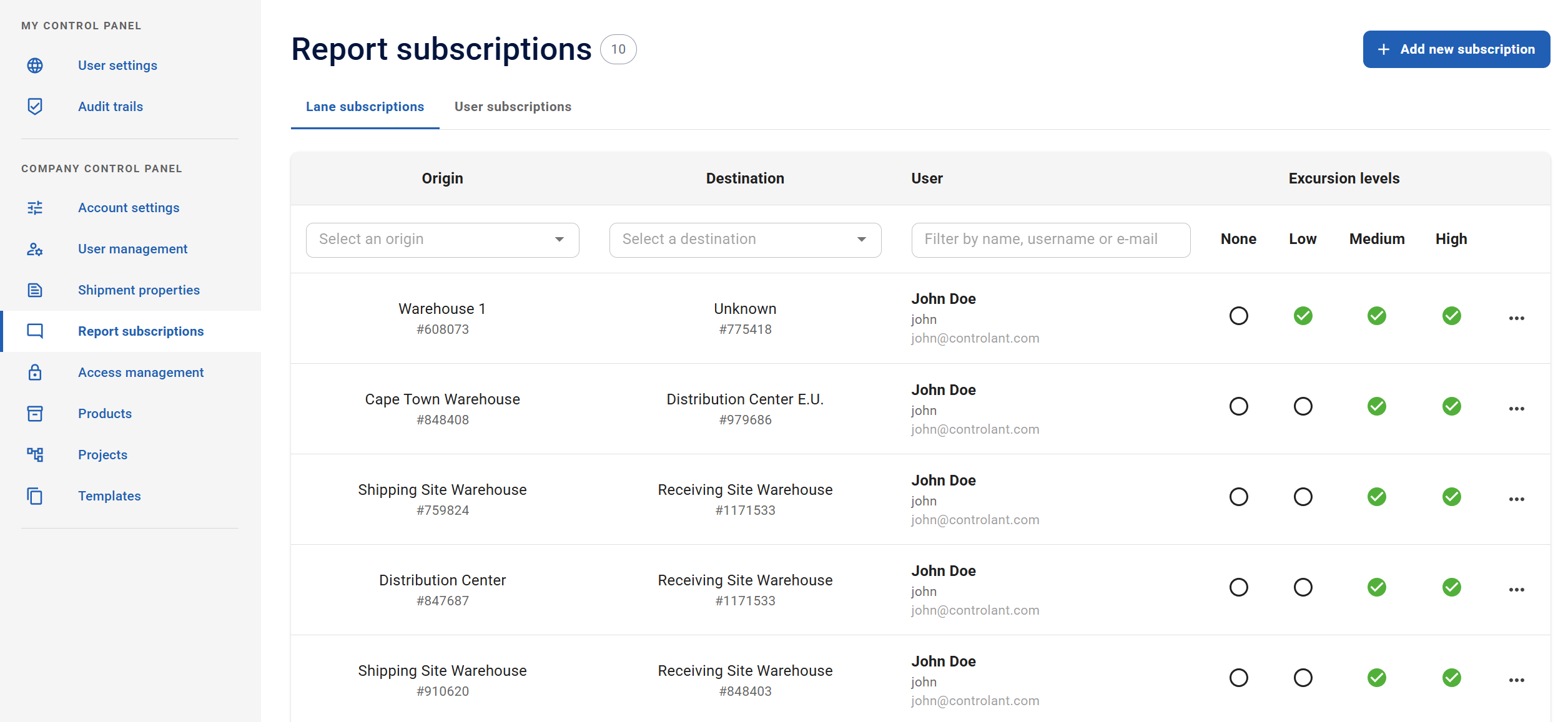
If you have administrator access, you can use the Admin Panel page to configure automated shipment reports by shipping lane or per users.
Note
This section is only accessible for users with Admin access to the Controlant Platform (SCM).
In the Admin Panel, in the Company Control Panel menu, click Report subscriptions.
Lane Subscriptions

You can use the Lane Subscriptions page to view and manage quality report subscriptions for lanes (origin-destination pairs).
A subscription means a user will receive an email with the quality report for each shipment on that lane that meets the configured excursion severity level.
Note
You can add a subscription to:
users registered in the Controlant Platform (SCM)
non-users, by supplying an email address
In the Admin Panel, in the Company Control Panel menu, in the Report Subscriptions area, click Lane subscriptions.
The Lane subscriptions page appears.
Item | Description |
|---|---|
Origin | Origin location of lane. |
Destination | Destination location of lane. |
Item | Description |
|---|---|
Users | Name of user who has a subscription to the selected lane. |
Username | Username of user. |
Excursion severity level | Excursion severity level to set for notifications for this user on this lane:
NoteFor a user to receive a quality report by email for every shipment on the lane, you need to check all of the above. |
Item | Description |
|---|---|
Add users | Add a subscription to a user by selecting from a list of users, in |
Users | Select user you want to add a subscription to from the list. |
Excursion severity level | Excursion severity level to set for notifications for this user on this lane: |
Add email (non-user) | You can add a subscription to someone who is not registered as a user, by supplying an email address. |
Add non-user | Email address to add a subscription for. |
Excursion severity level | Excursion severity level to set for notifications for this non-user on this lane: |
 | Click to add the user / non-user. |
 | Available actions:
|


Click +Add new subscription. The Create a new lane subscription dialog appears.
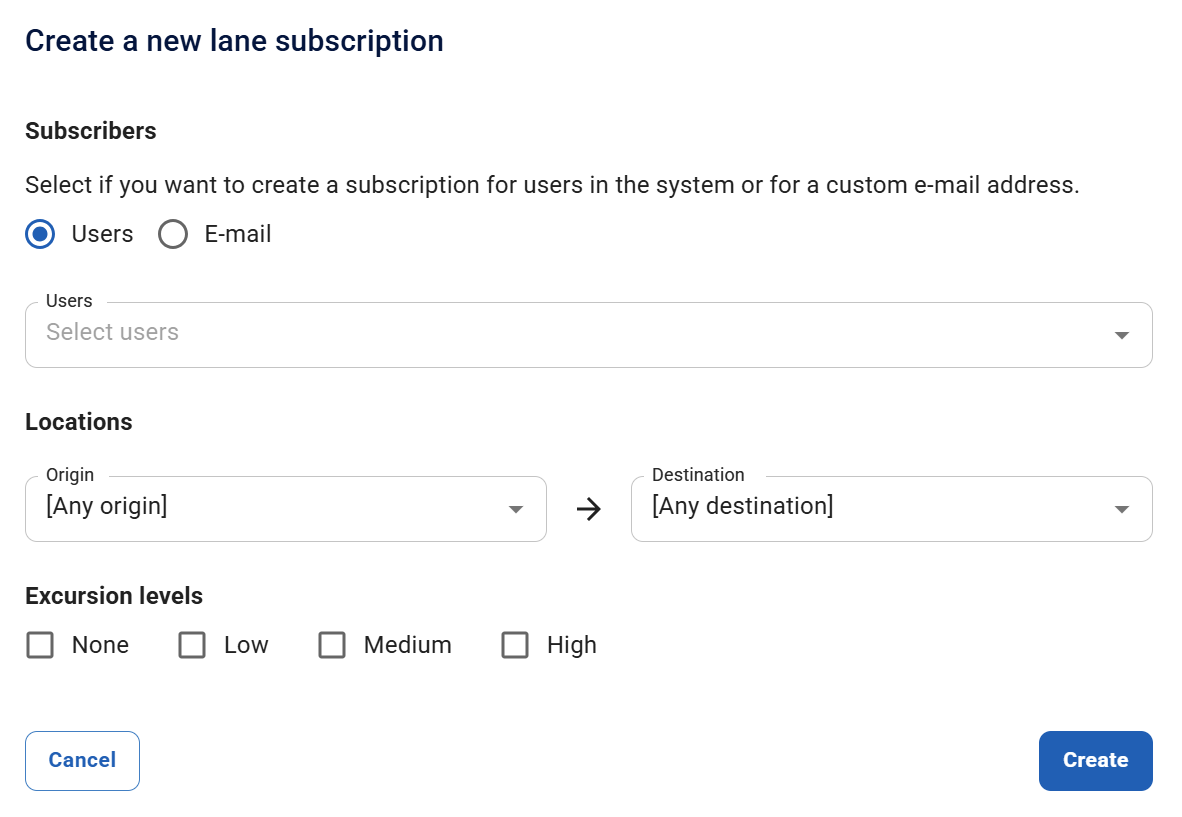
Under Subscribers, choose who to subscribe:
To subscribe registered users, select Users, and then in the Users list, select one or more users.
To subscribe someone who isn’t a registered user, select E-mail, and then type their email address.
Under Locations, set the lane:
In the Origin list, select the origin location.
In the Destination list, select the destination location.
Tip
Origin and destination are set to [Any origin] and [Any destination] by default. Keep both defaults to subscribe to all lanes. Change only one to subscribe to all lanes coming from a specific origin or going to a specific destination.
Under Excursion levels, select one or more levels. Subscribers receive an email with the quality report for each shipment on the lane that matches a selected level:
If you want the user to receive an email with the quality report for each shipment on this lane — whether there was an excursion or not — click to select None.
If you want the user to receive an email with the quality report for each shipment on this lane that had an excursion with severity level low, click to select Low.
If you want the user to receive an email with the quality report for each shipment on this lane that had an excursion with severity level medium, click to select Medium.
If you want the user to receive an email with the quality report for each shipment on this lane that had an excursion with severity level high, click to select High.
Tip
To receive a quality report for every shipment on the lane, select None, Low, Medium, and High.
Click Create. The subscription is created and appears in the Lane subscriptions table.
User subscriptions

You can use the User subscriptions page to manage quality report subscriptions for users.
A subscription means a user will receive an email with the quality report for each shipment on that lane that meets the configured excursion severity level.
In the Admin Panel, in the Company Control Panel menu, in the Report Subscriptions area, click User subscriptions.
The User subscriptions page appears.
Item | Description |
|---|---|
Users | List of active users in the system. For more information on how to manage users, see User Management. |
Item | Description |
|---|---|
Origin | Origin location of lane. |
Destination | Destination location of lane. |
Excursion severity level | Excursion severity level to set for notifications for this user on this lane: NoteFor a user to receive a quality report by email for every shipment on the lane, you need to check all of the above. |
| Click to add a new user subscription. |
| Available actions:
|
Click Add new subscription. The Create a new user subscription dialog appears.

Under Subscriber, in the User list, select the user.
Under Locations, set the lane:
In the Origin list, select the origin location.
In the Destination list, select the destination location.
Under Excursion levels, select one or more levels. Subscribers receive an email with the quality report for each shipment on the lane that matches a selected level:
If you want the user to receive an email with the quality report for each shipment on this lane — whether there was an excursion or not — click to select None.
If you want the user to receive an email with the quality report for each shipment on this lane that had an excursion with severity level low, click to select Low.
If you want the user to receive an email with the quality report for each shipment on this lane that had an excursion with severity level medium, click to select Medium.
If you want the user to receive an email with the quality report for each shipment on this lane that had an excursion with severity level high, click to select High.
Click Create. The subscription is created and appears in the User subscriptions table.