App settings
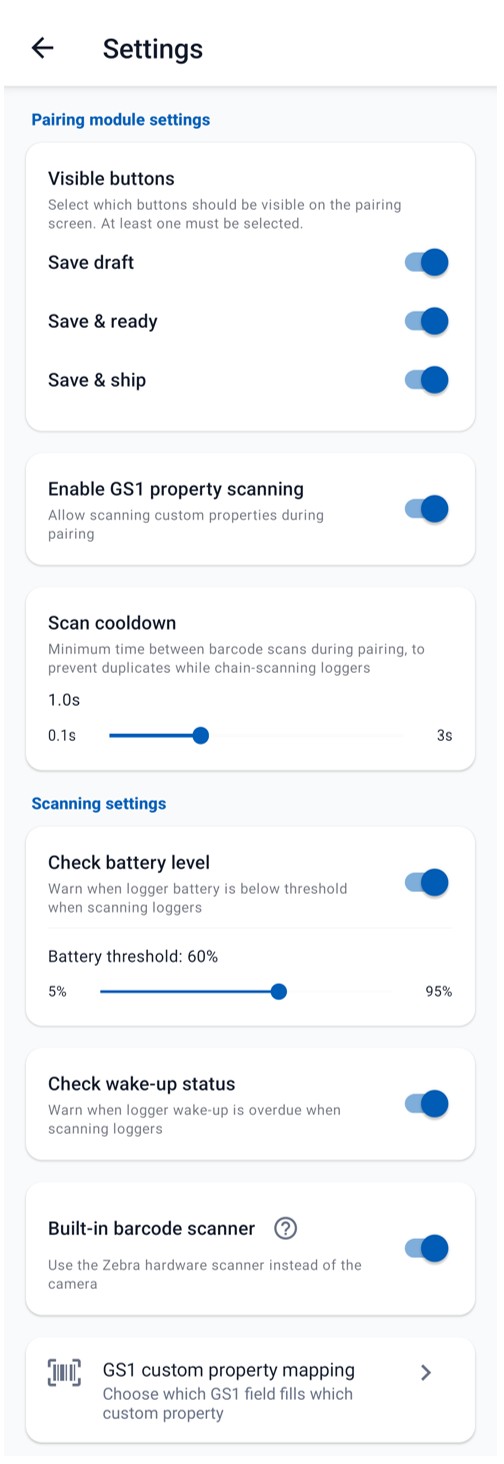 |
Setting | Description |
|---|---|
Visible buttons | Allows users to select which buttons should be visible on the pairing screen. At least one must be selected.
|
Enable GS1 property scanning | Allows users to scan custom properties during pairing. |
Scan cooldown | Sets the minimum time (.1-3 seconds) between barcode scans during pairing to prevent duplicates while chain-scanning devices. |
Setting | |
|---|---|
Check battery level | If enabled, users will be warned when a device battery is below a determined threshold when scanning devices. If enabled, users must set a minimum battery threshold. This number reflects the minimum battery power a device should have before being placed in a shipment. Controlant recommendations are as follows:
|
Check wake-up status | If enabled, users will be warned when a device wake-up is overdue when scanning devices. (An overdue wake-up may indicate that a device is not functioning properly.) |
Built-in barcode scanner | If enabled, the app will utilize a device's built-in barcode scanner to scan shipment references, device IDs, and GS1 fields. If no built-in barcode scanner is detected on the device, this setting will be disabled and locked, and the device's camera will be used instead. |
GS1 custom property mapping | Allows users to choose which GS1 field fills which custom property. See below for more information on how to manage GS1 custom property mapping. |
How to manage GS1 custom property mapping
Note
The Controlant Mobile App displays custom properties as they exist in the Controlant Platform (SCM). The app cannot be used to create new custom properties.
Admin users can add, edit and delete custom properties within the Admin Panel of the Controlant Platform (SCM).
To add a new GS1 field:
Select GS1 custom property mapping from the settings screen.
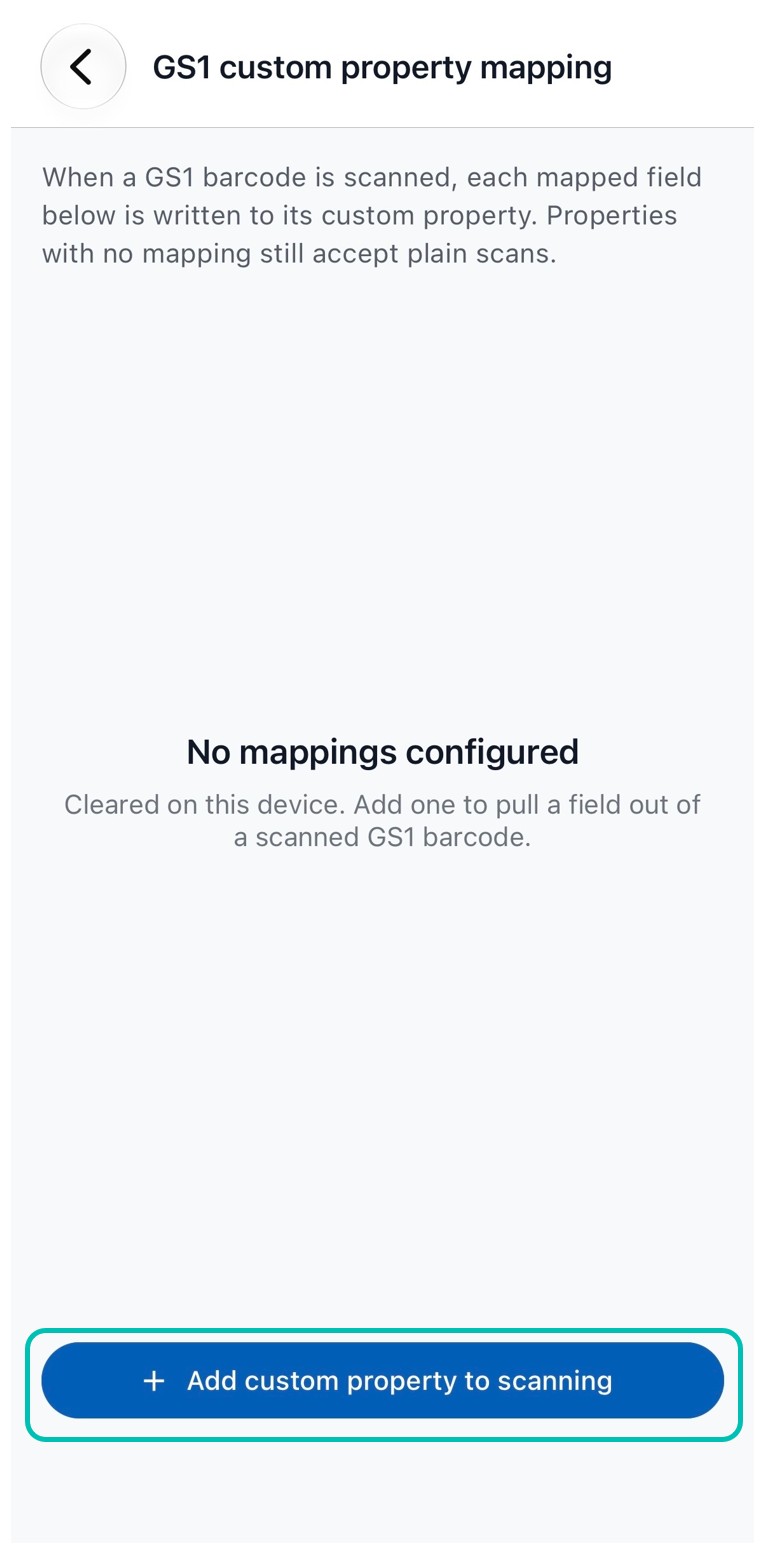
Select Add custom property to scanning.
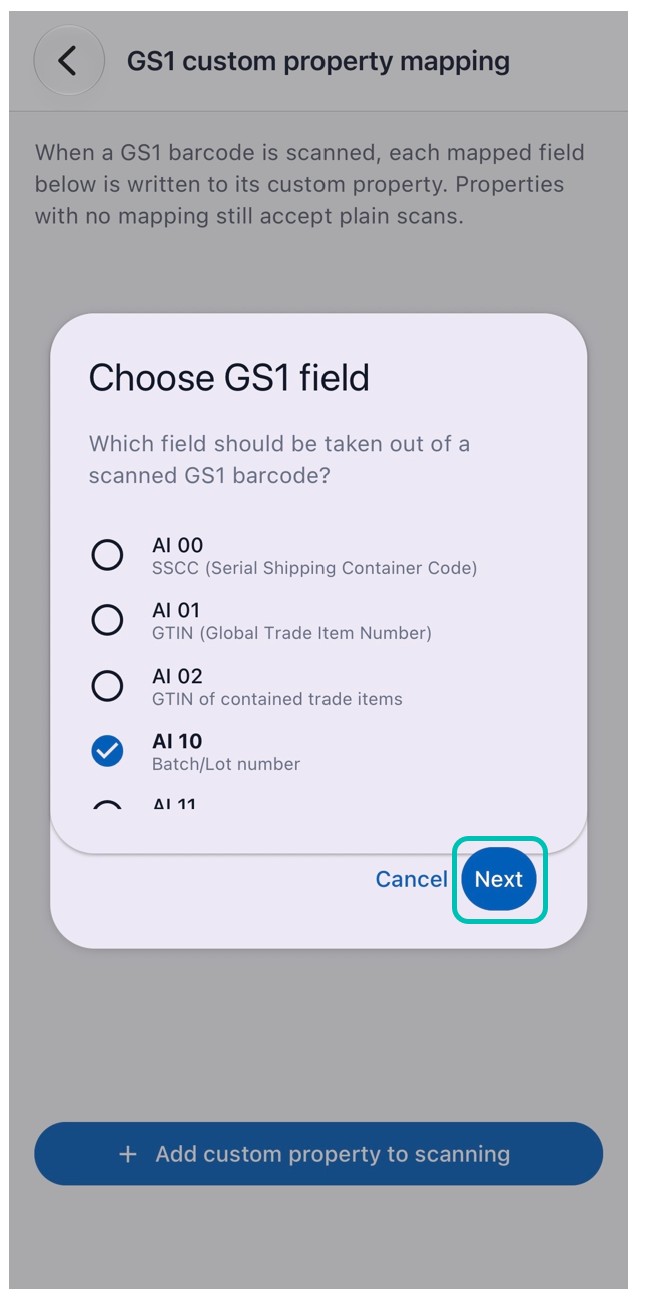
Select a GS1 field from the list and click Next.
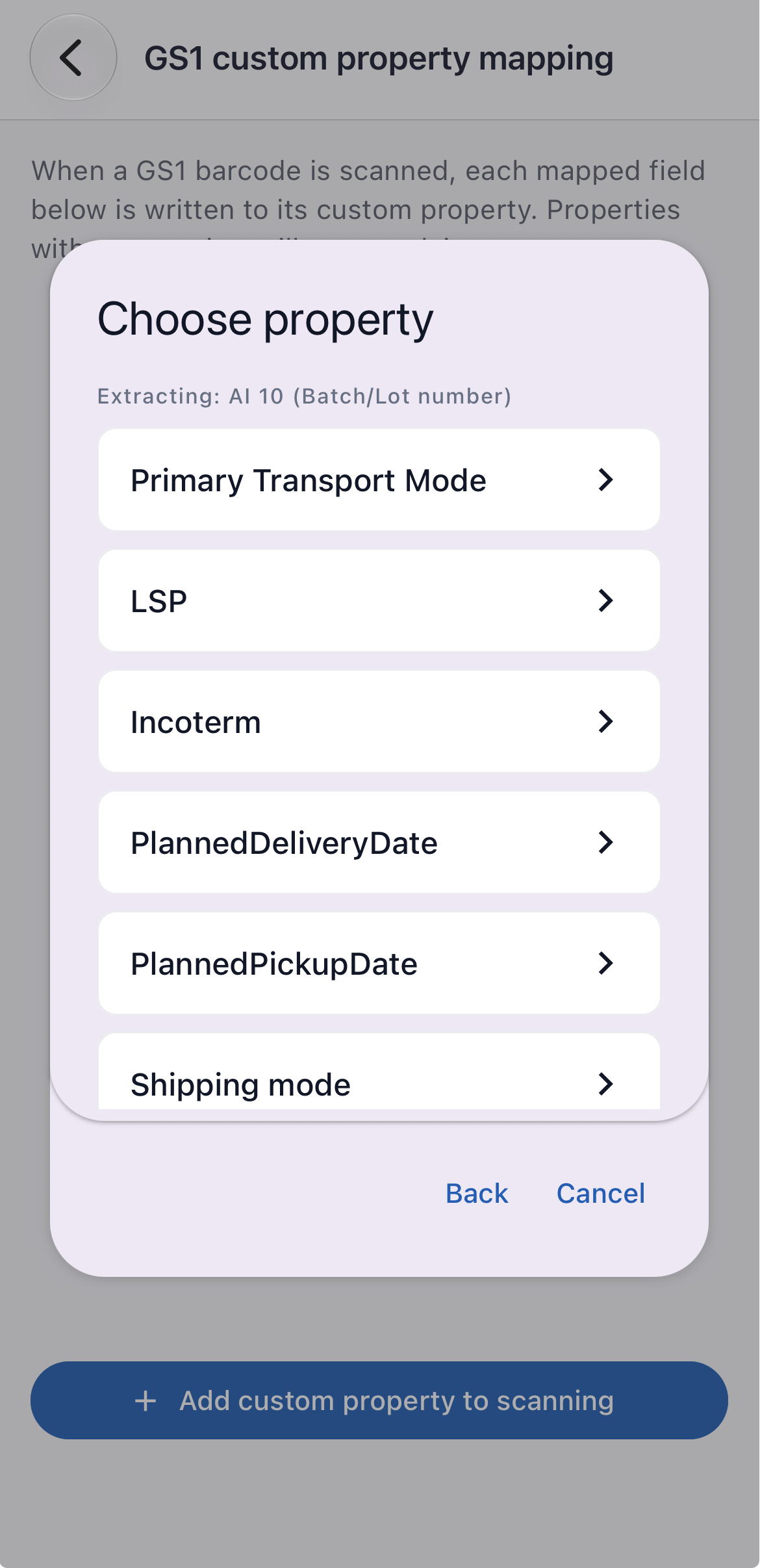
Select the custom property to be mapped.
The custom property has now been mapped to a GS1 field.
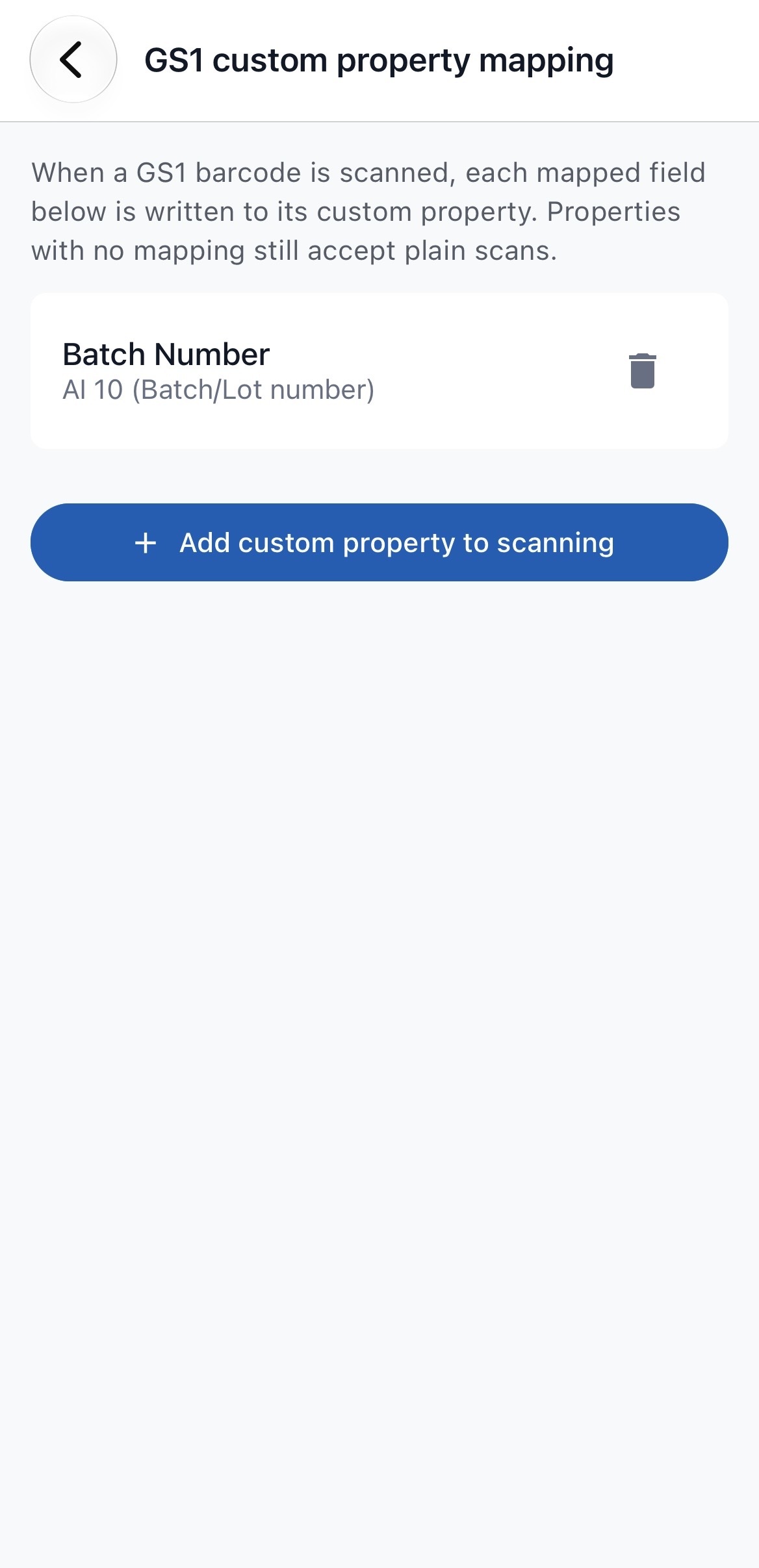
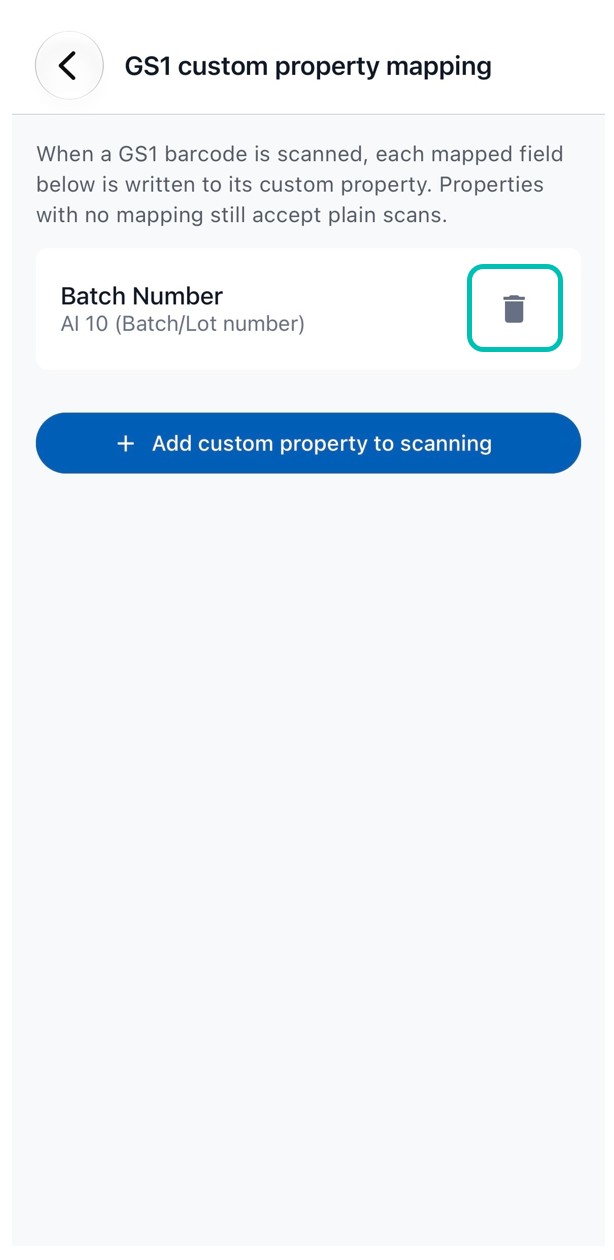
To remove a GS1 field, select the  icon.
 |